

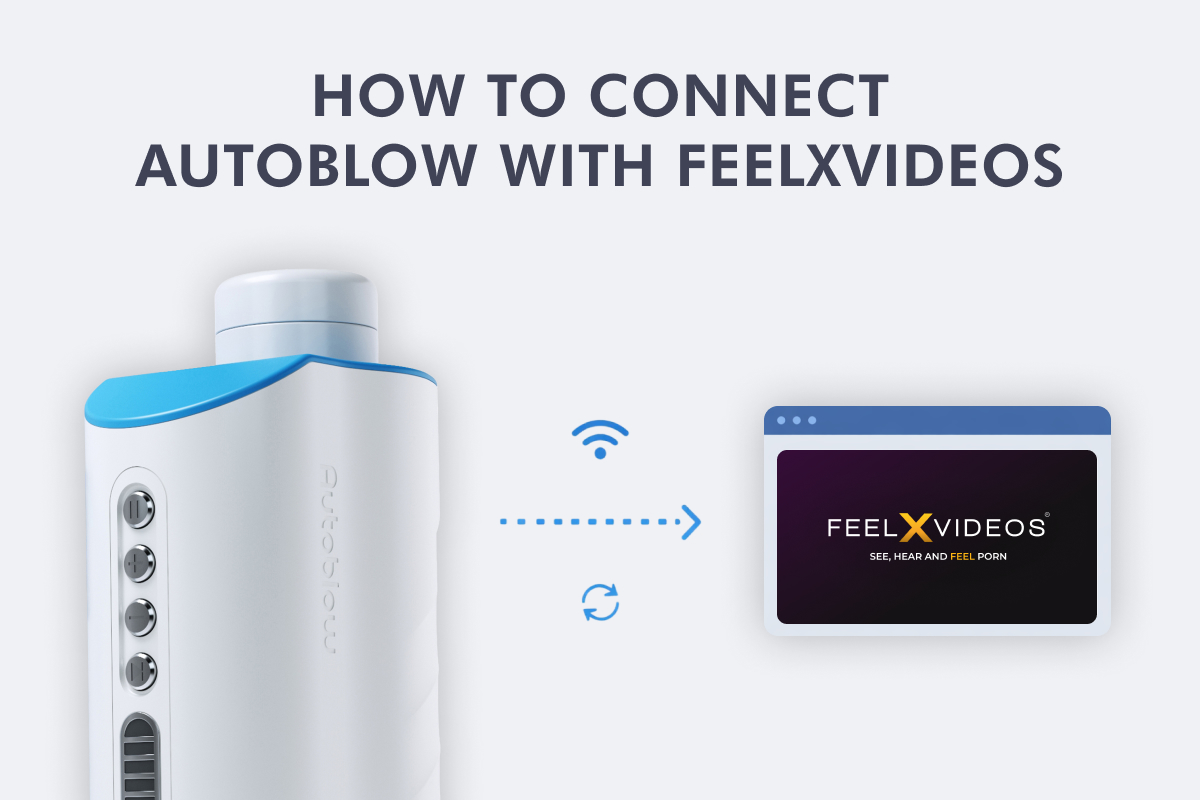
If you already own an Autoblow, you’re only a few minutes away from turning it into a fully interactive experience with FeelXVideos.
Connecting Autoblow to FeelXVideos allows your device to sync in real time with interactive videos — no guessing, no manual controls, just motion that follows what’s happening on screen. The setup itself isn’t difficult, but it is specific. Missing one step can make it feel like nothing works, even when everything is fine.
This guide is written specifically for existing Autoblow users who want the connection working quickly and reliably.
You’ll learn:
- What to prepare before you start (and what usually causes setup issues)
- How to connect Autoblow to Wi-Fi and enable interactive mode
- Where to enter your device key inside FeelXVideos
- How to test that everything is actually working
- How to fix the most common “offline” or connection problems
Follow the steps in order, and you’ll be enjoying interactive content in minutes.
What you’re about to do (and why Autoblow + FeelXVideos is worth it)
Autoblow is a Wi-Fi–enabled device designed to work with interactive platforms. FeelXVideos provides interactive videos that send real-time control signals to compatible toys, including Autoblow.
When everything is connected correctly:
- The device responds automatically to the video
- Movements stay synced with what you’re watching
- You don’t need to touch controls once playback starts
In short, it turns Autoblow from a manual device into a hands-free, guided experience.
To explore more interactive content designed for device control, you can browse the interactive video section on FeelXVideos.
Quick checklist before you start (avoid the 3 common fail points)
Before diving in, take a moment to confirm the following. Most setup problems come from skipping one of these steps.
- Your Autoblow is powered on and nearby
- You have access to a 2.4GHz Wi-Fi network
- You’re using a phone, tablet, or computer with a modern browser
- You have 5 uninterrupted minutes
- You’re ready to save your device token when it appears
Important: Most connection issues are caused by Wi-Fi configuration or losing the device token. Saving the token during setup avoids unnecessary reconfiguration later.
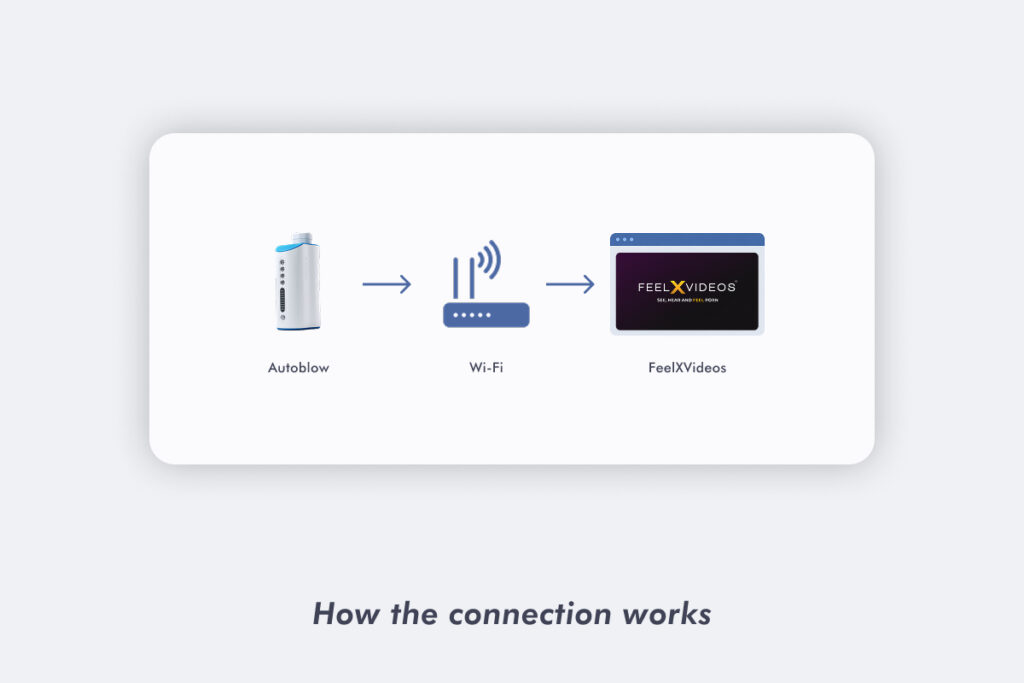
How the connection works (in plain English)
Autoblow does not connect to FeelXVideos using Bluetooth.
Instead:
- Autoblow connects to your home Wi-Fi network
- During setup, it generates a unique device token
- That token acts as a secure identifier for your device
- FeelXVideos uses the token to send interactive commands over the internet
Once the token is entered into FeelXVideos, the two are linked. As long as Autoblow is online and in interactive mode, FeelXVideos can control it during compatible videos.
Click here for a broader explanation of interactive toys and content.
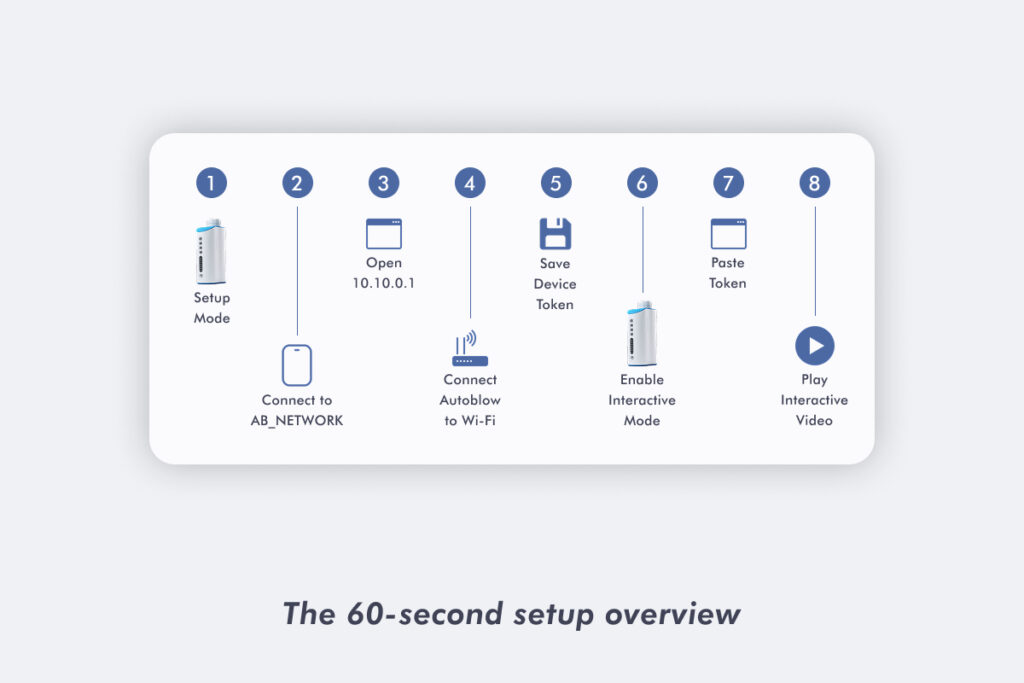
The 60-second setup overview (for people who don’t read manuals)
Here’s the entire process at a glance:
- Put Autoblow into setup mode
- Connect your phone or computer to AB_NETWORK
- Open 10.10.0.1 in your browser
- Connect Autoblow to your home Wi-Fi
- Save the device token
- Enable interactive mode on Autoblow
- Paste the token into FeelXVideos
- Play an interactive video to test
The detailed steps below walk through each part.
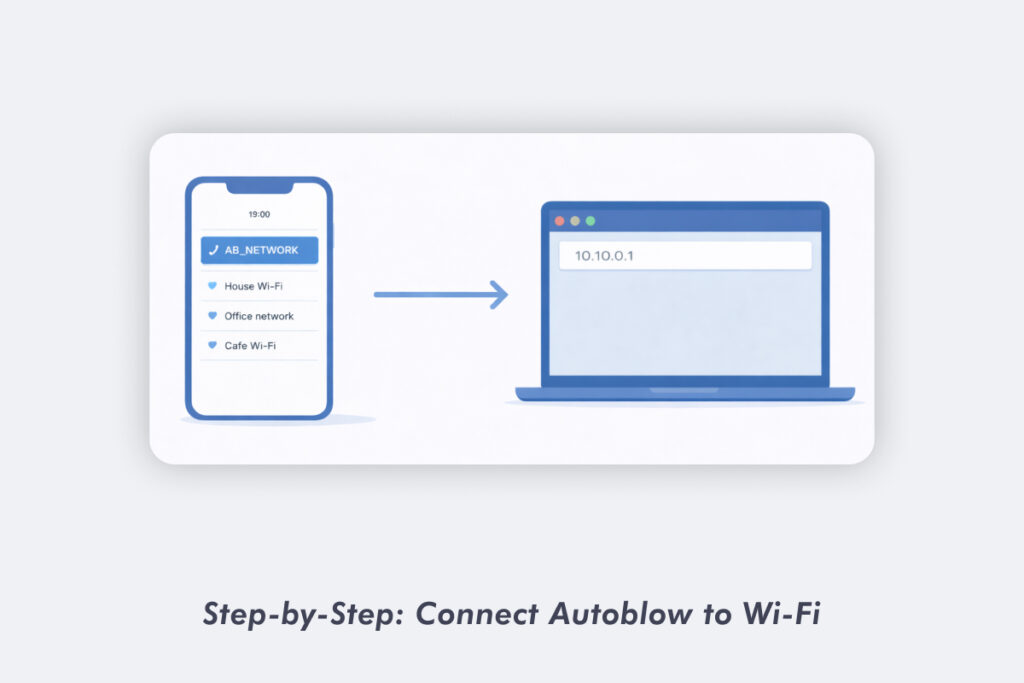
Step-by-step: connect Autoblow to Wi-Fi (AB_NETWORK → 10.10.0.1)
Begin by placing your Autoblow into setup mode according to your model’s instructions. When in setup mode, the device creates a temporary Wi-Fi network.
- Open Wi-Fi settings on your phone, tablet, or computer
- Select the network named AB_NETWORK
- Connect using the default password: 123456789 (If your specific model documentation lists a different password, use that.)
- Open a browser and go to http://10.10.0.1
This opens the Autoblow configuration page.
From here:
- Select your home Wi-Fi network
- Ensure a 2.4GHz network is available
- Enter your Wi-Fi password
- Confirm the connection
After a short moment, Autoblow will connect to your Wi-Fi.
Save your device token
Once connected, Autoblow will display a device token.
- Copy it exactly
- Save it securely (notes app or password manager)
- You will need this token to connect to FeelXVideos
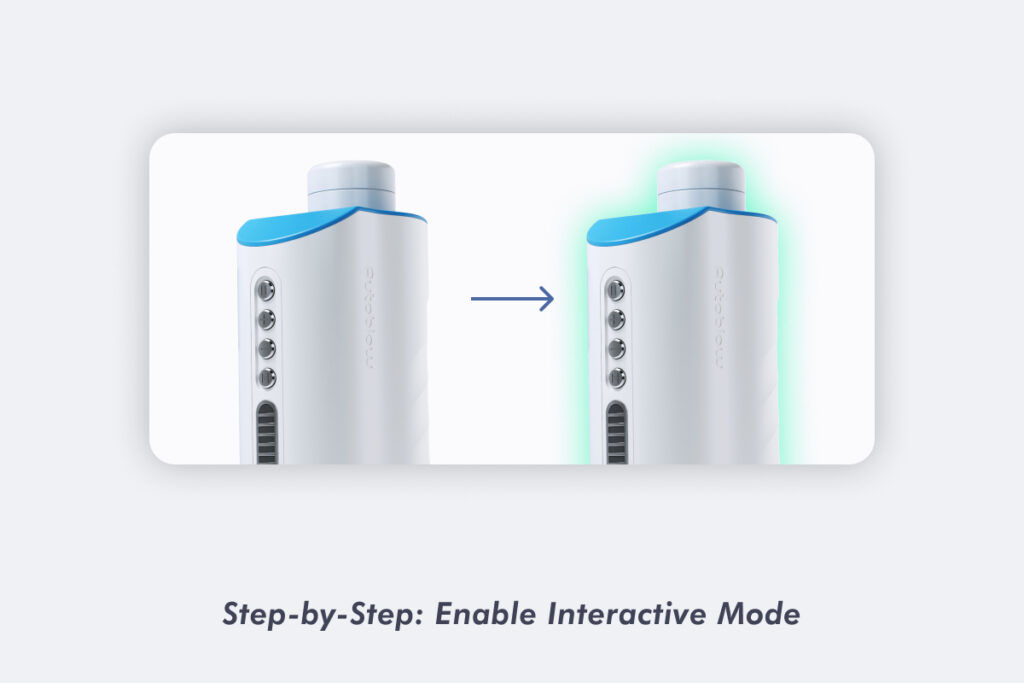
Step-by-step: enable interactive mode (so FeelXVideos can see the device)
After Autoblow is connected to Wi-Fi, it must be placed into interactive mode.
Interactive mode allows the device to receive control signals from FeelXVideos.
Depending on your model, this may involve pressing a button combination or selecting interactive mode from the device interface. When interactive mode is active, the device will show a visible indicator (such as LEDs).
If interactive mode is not enabled, FeelXVideos may show the device as offline even if Wi-Fi is connected.
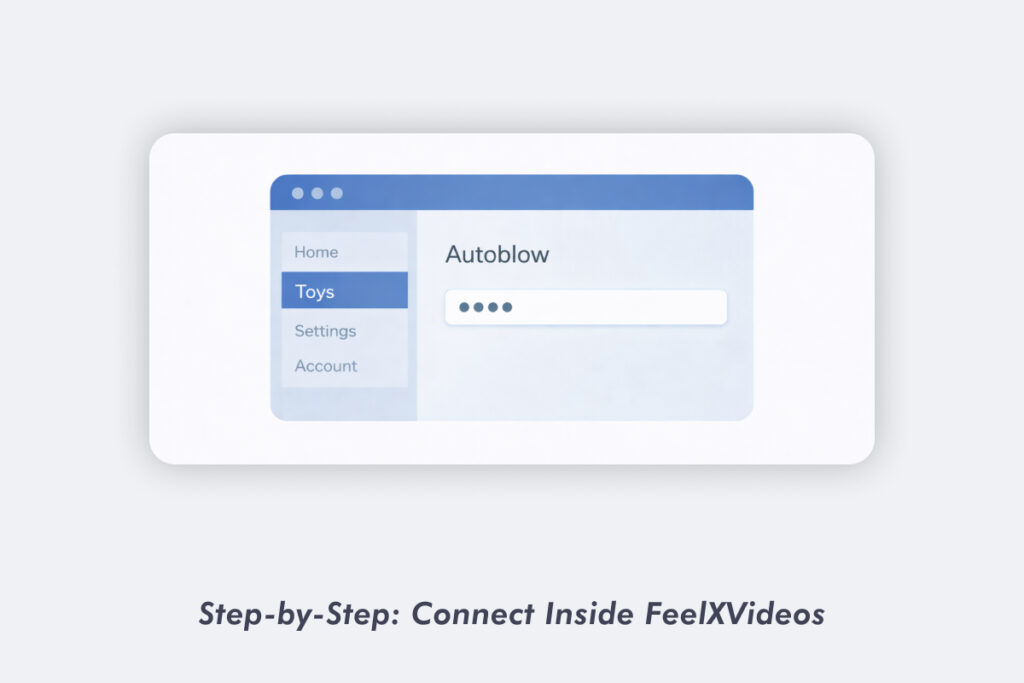
Step-by-step: connect inside FeelXVideos (Toys → Autoblow → paste token)
Now move to FeelXVideos.
- Log in to your FeelXVideos account
- Open the main menu and select Toys
- Choose Autoblow
- Paste your saved device token
- Confirm the connection
If the token is correct and Autoblow is online in interactive mode, the connection should complete almost instantly.
Test it fast: the 30-second “is it working?” check
To confirm everything is set up correctly:
- Start any interactive video
- Watch for Autoblow movement shortly after playback begins
- Confirm the motion matches the video pacing
If the device responds, setup is complete.
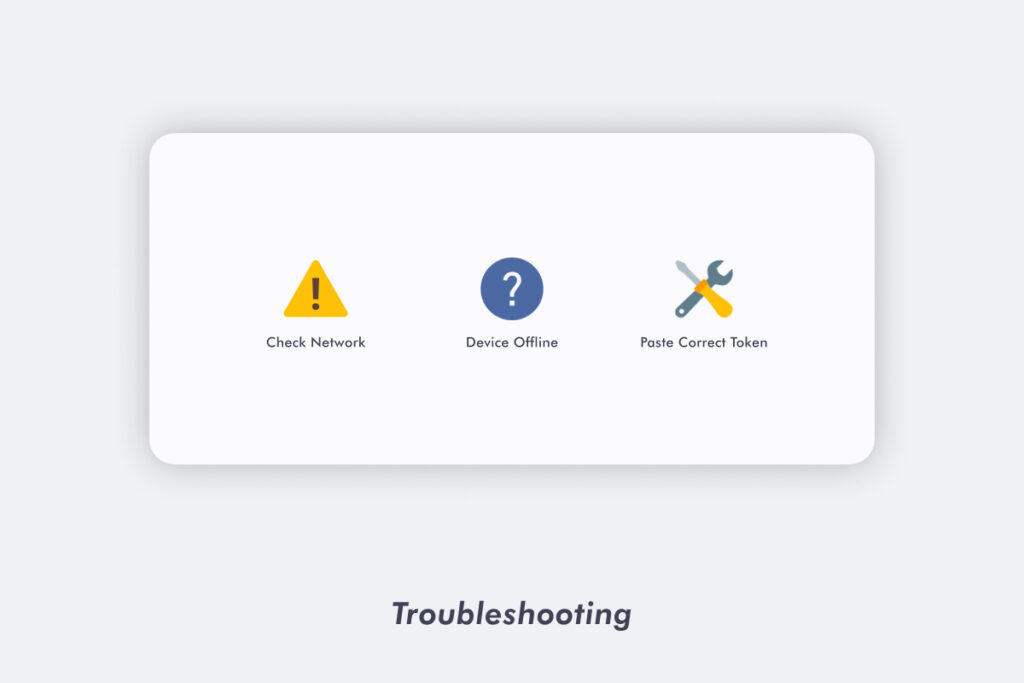
Troubleshooting (fix the common failures first)
If something isn’t working, check the following:
Can’t see AB_NETWORK Make sure Autoblow is in setup mode. Restart the device if necessary.
10.10.0.1 won’t load Confirm your phone or computer is connected to AB_NETWORK, not your home Wi-Fi.
Device shows offline in FeelXVideos Ensure:
- Autoblow is connected to Wi-Fi
- Interactive mode is enabled
- The correct device token was entered
Lost or incorrect token Repeat Autoblow’s initial internet connection/setup steps — the device token will be shown again during setup.
Wi-Fi issues Autoblow’s setup requires a 2.4GHz network to be available.
After it works: how to get the best FeelXVideos experience every time
Once connected, a few habits help keep things smooth:
- Enable interactive mode before starting a video
- Avoid changing networks during use
- Keep your device token saved securely
- Bookmark your favorite interactive scenes
To explore new content designed for interactive play, click here.
Frequently Asked Questions
1. Do I need Bluetooth to connect Autoblow to FeelXVideos?
No. Autoblow connects via Wi-Fi using a device token.
2. What is the Autoblow device token and why is it required?
The token uniquely identifies your device and allows FeelXVideos to control it securely.
3. I didn’t save my token — how do I recover it?
Repeat the initial Autoblow internet connection/setup steps and the token will be shown again.
4. Why can’t I see AB_NETWORK in my Wi-Fi list?
Autoblow may not be in setup mode. Restart the device and try again.
5. What is the AB_NETWORK password?
For Autoblow AI Ultra, the default password is 123456789. If your model documentation specifies a different password, use that.
6. Why does 10.10.0.1 not load in my browser?
Make sure you are connected to AB_NETWORK and not your regular Wi-Fi.
7. Does Autoblow only work on 2.4GHz Wi-Fi?
Autoblow’s Wi-Fi setup requires a 2.4GHz network to be available.
8. What does “device offline” mean in FeelXVideos?
It usually means interactive mode isn’t enabled or the device token is incorrect.
9. Where is the Toys button on FeelXVideos?
It is located in the main site menu once you are logged in.
10. Can I use FeelXVideos on mobile or only desktop?
FeelXVideos works on mobile, tablet, and desktop browsers.
11. How do I exit interactive mode when I’m finished?
Press and hold the PLAY button for 3 seconds until the LEDs blink, or turn the device off and back on.
12. What should I try first if it worked once but won’t reconnect?
Confirm interactive mode is enabled, check Wi-Fi connectivity, and re-enter the device token.
You’re now fully connected. Choose an interactive video and enjoy the complete Autoblow experience.